Cleaning up old Snap revisions to free up space on Ubuntu
In this post
If you’ve been using Ubuntu for a while, you’ve probably noticed that the /var/lib/snapd directory grows silently and steadily. The reason isn’t the Snap packages you’ve installed — it’s the old copies the system automatically keeps every time one of those packages is updated. On a system with dozens of snaps, it’s common to find 5, 8, or even more gigabytes occupied by revisions you’ll never use. This issue is especially troublesome on smaller partitions, SSDs with limited space, or VMs with tight disk capacity. The good news is that identifying and removing this excess takes just a few minutes, as long as you know where to look and what not to delete.
What are Snap reviews and why do they exist#
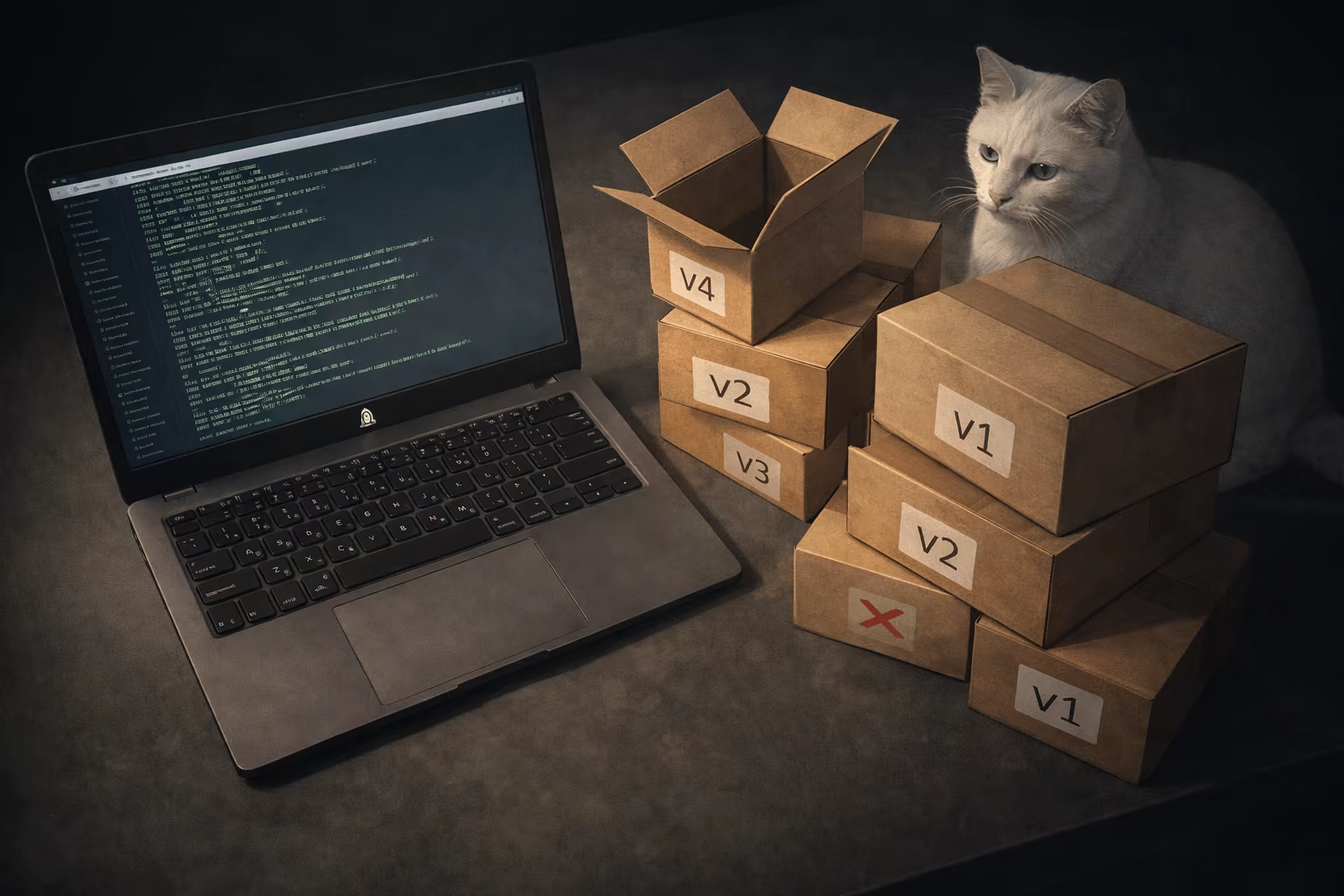
Snapd operates on the concept of immutable revisions. Each time a snap receives an update, the previous version is not deleted — it is marked as disabled and remains on disk, intact and ready to be reactivated if the new version encounters issues. This means the system always keeps at least two copies of each installed snap: the active one and the previous one. The mechanism is analogous to what distributions like NixOS and Fedora Silverblue do with the entire system, but applied at the individual package level.
This behavior is controlled by the refresh.retain configuration, which defines how many revisions snapd should keep per snap. The default value is 2, which is also the minimum — users cannot configure the system to keep only the active version without any backup. Canonical enforces this minimum because rollback is one of the fundamental guarantees of the Snap architecture, and allowing users to eliminate all redundancy would compromise this promise.
The scenario where this makes the most sense is in IoT devices, edge computing, and industrial infrastructure. In these environments, snaps are updated remotely and autonomously, and the ability to roll back to a previous version without on-site human intervention is part of the platform’s business appeal. If an edge gateway in a factory receives a faulty update at 3 a.m., automatic rollback resolves the issue before anyone needs to get out of bed. On your desktop or laptop, however, the practical benefit of this safety net is much smaller — and the disk space cost may be hard to justify when storage is tight.
Diagnosis: how much space is being used#
Before removing revisions, it’s worth understanding the scale of the problem on your specific system. The amount of wasted space varies significantly depending on how many snaps you have installed and how frequently they’re updated — a system with a half-dozen lightweight snaps might be wasting only a few hundred megabytes, while one with Firefox, Chromium, LibreOffice, and several GNOME runtimes could easily exceed 5 GB in inactive revisions.
Listing all revisions#
The starting point is the snap list --all command, which shows all installed snaps along with their revisions, including the disabled ones:
sudo snap list --all
The output includes columns such as name, version, revision number, and notes. The information of interest here is the “Notes” column — older revisions appear marked as disabled. Each row with this marking represents an inactive copy occupying disk space. If you’d like a cleaner view, showing only the disabled revisions:
snap list --all | grep disabled
The command’s output length shows the problem’s scale; every line is a candidate for removal.
Measuring actual consumption#
The snap list command doesn’t show the size of each revision, so to get a clear picture of the actual disk impact, you need to check directly in the filesystem. The quickest way is:
sudo du -sh /var/lib/snapd
This value includes everything managed by snapd — active and inactive revisions, caches, and metadata. For a breakdown per individual snap, navigate to the directory where the .snap files are stored:
sudo du -sh /var/lib/snapd/snaps/*
Each file in this directory corresponds to a specific revision (the filename follows the pattern name_revision.snap), and you can cross-reference the revision numbers with the output of snap list --all to identify which ones are active and which are candidates for removal. If you prefer a graphical view, the GNOME Disk Usage Analyser allows you to navigate to /var/lib/snapd/snaps and quickly see which files are larger and older — combining size and date helps make more confident decisions about what to remove.
Manual cleanup: removing revisions one by one#
The safest approach to clean up disabled revisions is to remove them individually, reviewing each one before executing the command. The process is simple but requires attention — snap remove with the --revision flag does not ask for confirmation before taking action.
The command follows this format:
sudo snap remove --revision=NÚMERO nome-do-snap
For example, if snap list --all shows that Firefox has revision 5678 marked as disabled, the command would be:
sudo snap remove --revision=5678 firefox
Removal is immediate and silent. If the revision number or snap name is incorrect, the command fails without causing harm — but if you accidentally specify the active revision, snapd refuses to remove it, so there’s no risk of accidentally breaking a snap in use.
The workflow that works best in practice is to keep two terminals side by side: one showing the output of snap list --all | grep disabled for reference, and the other where you type the removal commands. This prevents typos in revision numbers and allows you to mentally check off the lines you’ve already processed. On a system with just a few disabled snaps, the entire process takes less than two minutes.
The advantage of this approach over an automated script is granular control. You can decide, for example, to keep the previous revision of snapd or core22 as an extra precaution, while confidently removing old revisions of snap-store or gtk-common-themes. Not every snap has the same level of criticality, and manual removal allows you to handle each case individually.
Quick cleanup: the one-liner to remove everything at once#
If you already understand what is being removed and don’t need to evaluate each snap individually, a one-line loop handles the entire task at once. This is the approach most tutorials on the internet recommend, and it works well — as long as you know what you’re doing.
The loop in one line#
The command combines snap list --all with text filters to extract the names and revisions of all disabled snaps and pass them directly to snap remove.
snap list --all \
    | awk '/disabled/{print $1, $3}' \
    | while read name rev; do
        sudo snap remove "$name" --revision="$rev"
    done
The awk command filters lines containing “disabled” and extracts the first field (snap name) and the third field (revision number). The while read loop iterates over each pair and performs the removal. The process takes from a few seconds to just over a minute, depending on the number of accumulated revisions, and the terminal output shows each snap being removed as the loop progresses.
Variation with dry-run#
Oh snap, remove doesn’t have a native dry-run flag, but it’s easy to simulate one by replacing the execution with an echo:
snap list --all \
    | awk '/disabled/{print $1, $3}' \
    | while read name rev; do
        echo "snap remove $name --revision=$rev"
    done
The output shows exactly which commands would be executed, without making any changes. This allows you to review the full list before committing to any action. If everything looks correct, simply run the actual version. If a specific snap appears in the list and you’d prefer to keep it — such as snapd or a kernel snap — note the name and add an additional filter to awk, for example:
snap list --all \
    | awk '/disabled/ && !/snapd/ && !/core/{print $1, $3}' \
    | while read name rev; do
        sudo snap remove "$name" --revision="$rev"
    done
This variation excludes from removal any line containing “snapd” or “core”, preserving backup revisions of the system’s most sensitive components while cleaning up everything else.
Risks and precautions#
Removing disabled revisions from Snap isn’t a destructive operation in the classical sense — you’re not erasing personal data or uninstalling programs. However, it’s not an action without consequences, and it’s worth understanding what you’re giving up before you start cleaning everything up.
No rollback available#
The most direct effect of removal is the loss of rollback capability. If the active version of a snap has a bug after the next update, snapd will not have a previous revision to which it can revert — the command snap revert snap-name will fail because there is no longer a backup copy on disk. In practice, this means your only options when facing a problematic update are to wait for an upstream fix or to reinstall the snap entirely, losing any local configurations that aren’t saved elsewhere.
For most desktop snaps — text editors, messaging clients, various utilities — the risk is low. Problematic updates in these packages are usually more annoying than disruptive, and a fix typically appears within a few days. The situation changes when it comes to snaps that affect the system’s basic operation.
System and Kernel Snaps#
The snaps snapd, core, core20, core22, core24, and any kernel snaps form the base on which all other snaps run. A faulty update to any of them could prevent other snaps from starting or, in more severe cases, disrupt the boot process on systems that rely on snaps for startup components. Removing the backup revision of these packages eliminates the safety net precisely where it’s most needed.
The recommendation is simple: if you’re using the one-liner for bulk cleanup, exclude these snaps from the filter (as shown in the variation with !/snapd/ && !/core/ in the previous section). If you’re removing them manually, skip the lines corresponding to these packages. The space they occupy rarely justifies the risk.
It’s not permanent#
Cleaning up disabled revisions solves the space issue at the moment it’s performed, but it doesn’t change snapd’s behavior going forward. The next time any installed snap receives an update, the current version will be retained as a backup and the cycle starts again. Depending on how many snaps you have and how frequently they’re updated, the accumulation can return to uncomfortable levels within a few weeks or months.
There is no native way to disable review retention or to schedule automatic cleaning. If disk space is a recurring concern on your system, this removal will become a periodic task—something to include in your maintenance routine alongside apt autoremove and cleaning the journalctl cache. If you want to automate this cleaning, it is worth considering systemd timers instead of cron — or launchd if you are on macOS.
Alternative: adjusting the refresh.retain#
Before resorting to manual removal or the one-liner, it’s worth checking whether your system is already configured to retain the minimum number of revisions possible. The snapd setting refresh.retain defines how many revisions of each snap are kept on disk, and the default value on older installations may be 3 — meaning the system keeps two backup copies instead of one.
To check the current value:
sudo snap get system refresh.retain
If the output shows a number greater than 2, you can reduce it to the minimum with:
sudo snap set system refresh.retain=2
The change is immediate and affects the behavior of all future updates. From this point onward, snapd will keep at most one backup revision per snap, automatically discarding the oldest one whenever a new update arrives. Excess revisions already present on disk are not removed retroactively — to clean up what has already accumulated, you still need to use the commands from previous sections.
The value 2 is the absolute minimum for this setting. Attempting to set refresh.retain=1 results in an error, as Canonical considers keeping at least one backup a non-negotiable requirement of the Snap architecture. There is no hidden flag, environment variable, or documented workaround to bypass this limitation. If you truly need to keep only a single copy of each snap (with no backups), the only way to achieve that is by manually removing inactive revisions after each update cycle — which brings us back to the commands already covered in this post.

Sysadmin, 53, Brazilian working from home for the world. Manages Linux servers, LXC containers, and cats that won't get off the keyboard.